
Projects and files
A ProtoCode project represents a complete PLC: its programs, functions, function blocks, variable tables and tasks. It is saved as a folder on disk.
Create a project
Section titled “Create a project”Empty project
Section titled “Empty project”- On the home screen press New project (or + in Files).
- Enter the Title and, optionally, a Description. The description is shown in the recent projects list.
- Check the Location (the folder where it will be created) or change it with Browse.
- Press Create.
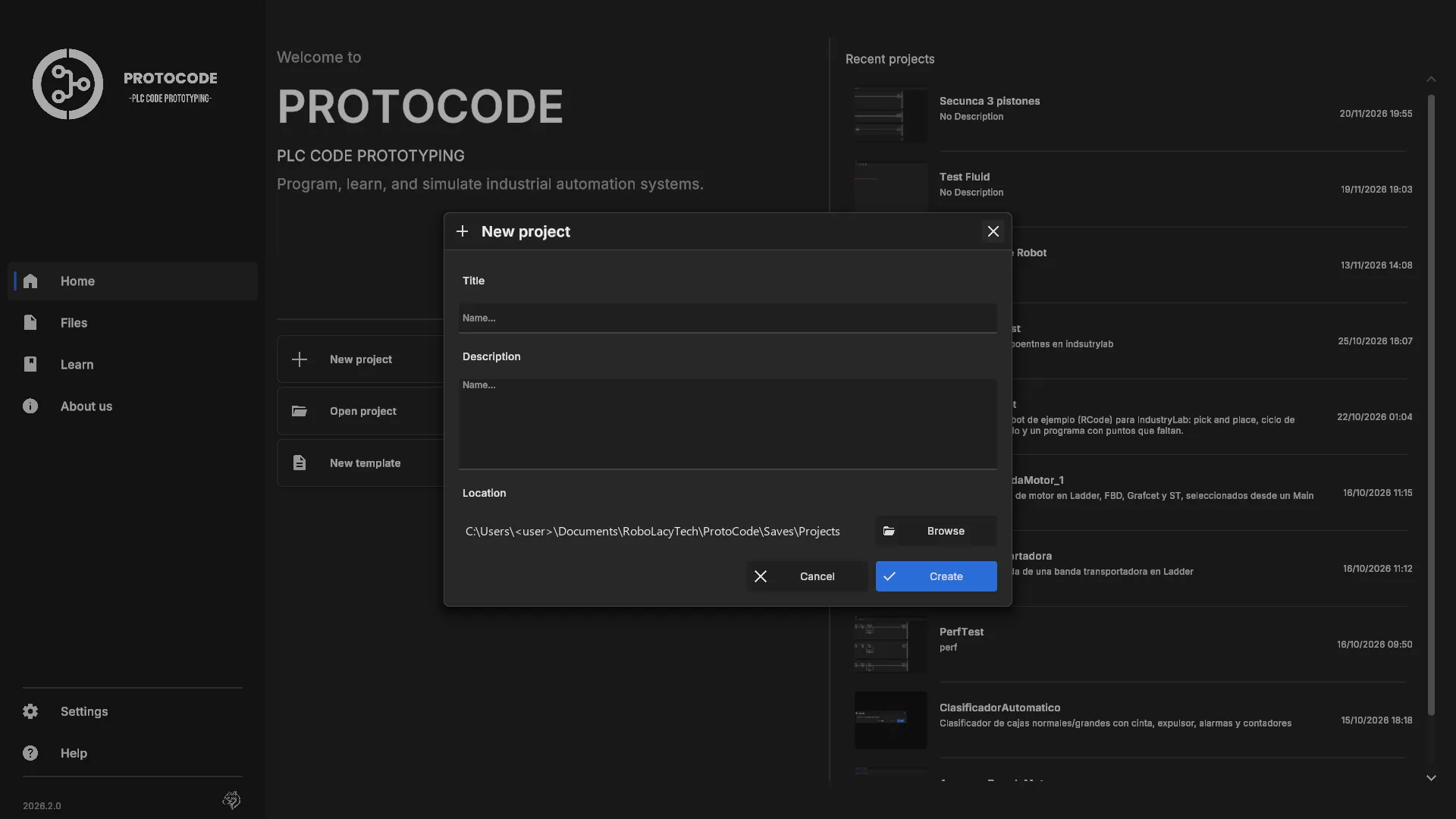
A new project already contains a main task (Main_Task) ready to run programs.
From a template
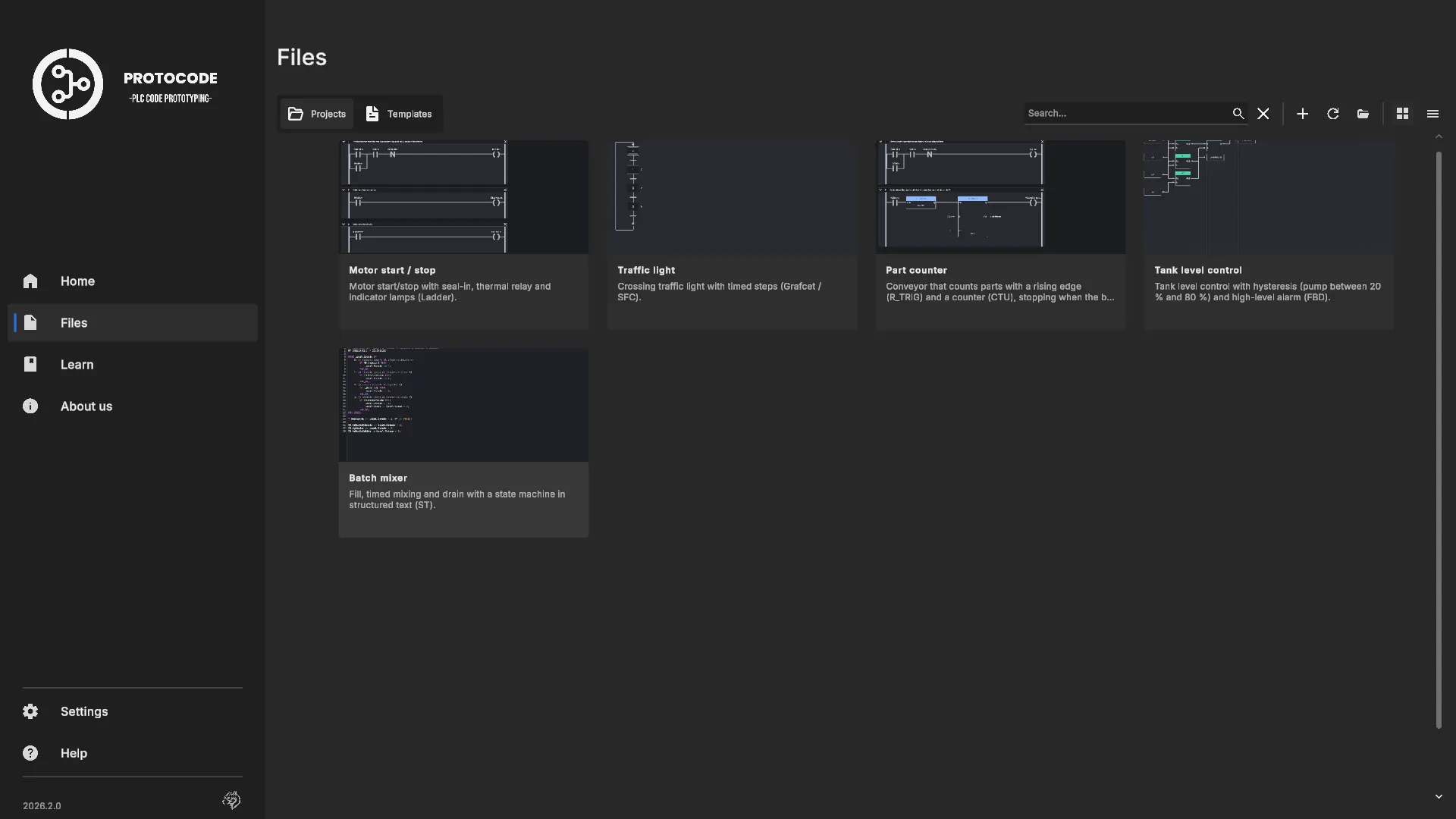
Section titled “From a template”- Go to Files → Templates (or press New template on the home screen).
- Pick a template.
- The same New project dialog opens: give it a name and press Create.
The project is created as a copy of the template, so you can change it freely without affecting the original. Each template is described in Example templates.
Open a project
Section titled “Open a project”- Click a project in Recent projects or in Files → Projects.
- Or press Open project and select the project folder or its
Project.pcodefile.
If you open another project while there are unsaved changes, ProtoCode asks whether to save them.
| Action | How | What it does |
|---|---|---|
| Save | Save button or Ctrl+S |
Saves the active file. |
| Save all | Save all button or Ctrl+Shift+S |
Saves every modified file in the project. |
| Save as | Save as button | Copies the whole project (including unsaved changes) to a new folder and continues working on the copy. The original project stays untouched. |
Tabs with pending changes show a dot (•) before the name.
Project structure on disk
Section titled “Project structure on disk”MyProject/├─ Project.pcode ← main project file├─ Tasks.task ← tasks and assigned programs├─ Tables/│ └─ IO.table ← global variable tables├─ Programs/│ ├─ Ladder/Motor.lad│ ├─ FBD/Level.fbd│ ├─ SFC/Cycle.sfc│ └─ ST/Mixer.pst├─ Functions/… ← functions (FC)├─ FunctionBlocks/… ← function blocks (FB)└─ Screenshots/ ← project thumbnailCreate files inside the project
Section titled “Create files inside the project”Press Home → New file.
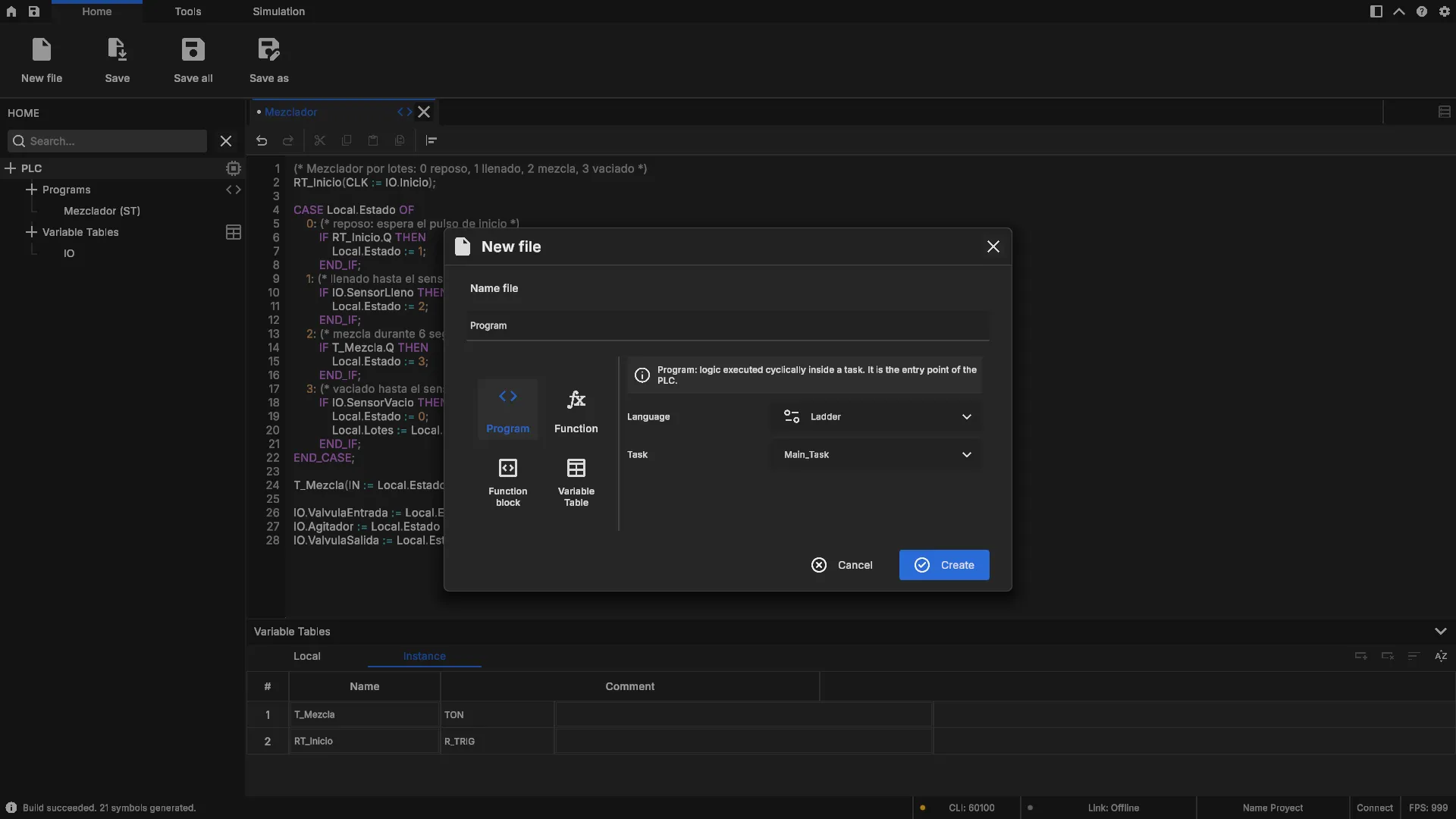
- Enter the file name. It must be a valid IEC identifier: letters, digits and
_, no spaces, not starting with a digit. - Choose the type:
| Type | Purpose | Languages |
|---|---|---|
| Program | Logic executed cyclically inside a task. It is the PLC entry point. | Ladder, FBD, Grafcet (SFC), ST |
| Function | Reusable calculation without memory: the same inputs always give the same result. | Ladder, FBD, ST |
| Function block | Reusable block with its own memory: each instance keeps its state between scans (timers, sequences…). | Ladder, FBD, Grafcet (SFC), ST |
| Variable Table | Table of global variables (inputs, outputs, markers…). | — |
- Choose the Language and, for programs, the Task that will run it (
Main_Taskby default). - Press Create. The file opens automatically.
More in Functions and function blocks.
Rename and delete
Section titled “Rename and delete”Right-click a file in the project tree:
- Rename: edit the name directly in the tree. Every reference (operands, function calls, instances) is updated automatically.
- Delete: asks for confirmation before deleting the file.
Undo and redo
Section titled “Undo and redo”Each editor keeps its own history: undo (Ctrl+Z) and redo (Ctrl+Y) only affect the active tab, variable tables included.