
Automation and CLI
ProtoCode includes an automation server that lets AI agents (Claude Code, Codex, Gemini CLI…) and external tools control the program from the same computer through the robolacytech command line. An agent can, for example, create a project, declare variables, write programs in any language, compile, simulate and read or force values.
Open it with Tools → Automation.
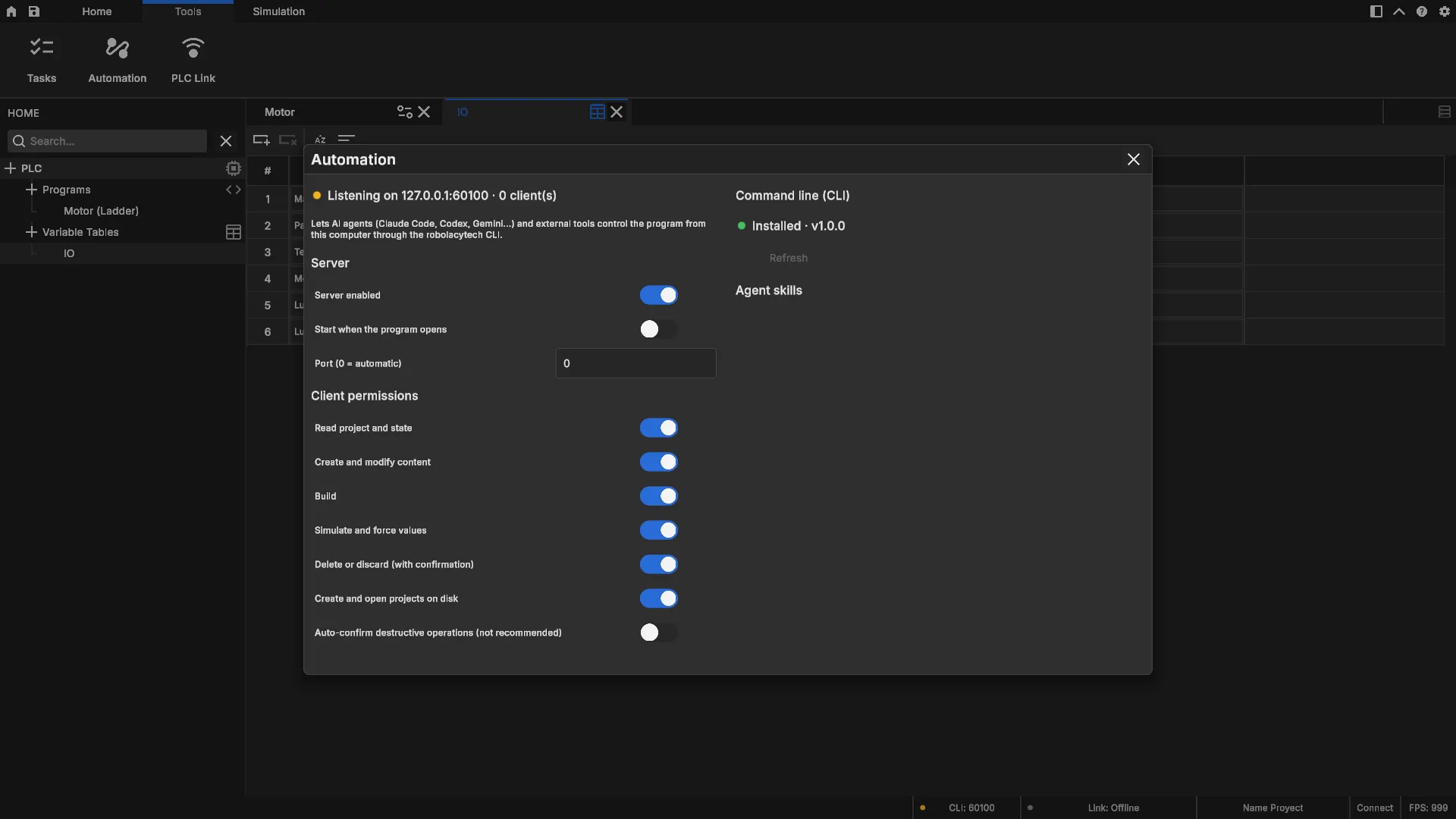
Server
Section titled “Server”| Option | Description |
|---|---|
| Server enabled | Turns the server on. The status is shown at the top: Listening on 127.0.0.1:port · N client(s). |
| Start when the program opens | Starts the server automatically when ProtoCode opens. |
| Port | TCP port. 0 = automatic. |
The server only listens on the local computer (127.0.0.1): it cannot be reached from the network. The CLI indicator in the status bar shows whether it is running, its port and the connected clients.
Client permissions
Section titled “Client permissions”Choose what connected tools may do:
| Permission | Allows |
|---|---|
| Read project and state | Reading the project, files and state. |
| Create and modify content | Creating and editing files, variables, tasks and programs. |
| Build | Compiling. |
| Simulate and force values | Starting and stopping the simulation, writing and forcing variables. |
| Delete or discard (with confirmation) | Deleting files or discarding changes, always with confirmation. |
| Create and open projects on disk | Creating, opening and saving projects. |
| Auto-confirm destructive operations | Skips the confirmation of destructive operations. Not recommended. |
Everything an agent does goes into the editor’s undo history, so you can revert it with Ctrl+Z.
Command line (CLI) and Agent skills
Section titled “Command line (CLI) and Agent skills”The right column shows whether the robolacytech CLI is installed and its version, plus the list of Agent skills: instruction packages that teach each AI agent how to use ProtoCode. From here you can install, update or uninstall the skill for each detected agent.
Using it from a terminal
Section titled “Using it from a terminal”With ProtoCode open and the server running:
robolacytech protocode status # program, project and simulation staterobolacytech protocode tools # available command groups and commandsrobolacytech protocode project info # files and tasks of the open projectrobolacytech protocode build compile # compilerobolacytech protocode sim start # start the simulationrobolacytech protocode sim read --targets '[{"variable":"IO.Motor"}]'Every command returns a JSON object ({"ok": true, "data": …}) meant to be read by an agent. With the skill installed, you can simply ask the agent in natural language, for example: “In ProtoCode, create a Ladder program that starts a conveyor with a push button and stops it after 10 parts, compile it and test it”.