
Simulation
ProtoCode includes a virtual PLC that runs the compiled project with its tasks just like a real PLC would: it reads the inputs, runs the programs and writes the outputs every scan.
Controls
Section titled “Controls”They are all in the Simulation tab of the ribbon.

| Button | What it does |
|---|---|
| Compile | Compiles without starting. |
| Play | Compiles if needed and starts the PLC. |
| Pause | Freezes the PLC: values are kept so you can inspect them. Play resumes. |
| Stop | Stops the PLC and returns to edit mode. |
| Warm reset | Warm restart: back to the initial state but keeps retentive variables (Retention column of the tables). |
| Cold reset | Cold restart: clears all memory and applies the initial values, retentive variables included. |
| Watch | Opens the watch table. |
| View states | Colours the editors with the PLC state (it can stay on). |
Viewing states in the editors
Section titled “Viewing states in the editors”With View states on, each editor shows the live state:
| Editor | What it shows |
|---|---|
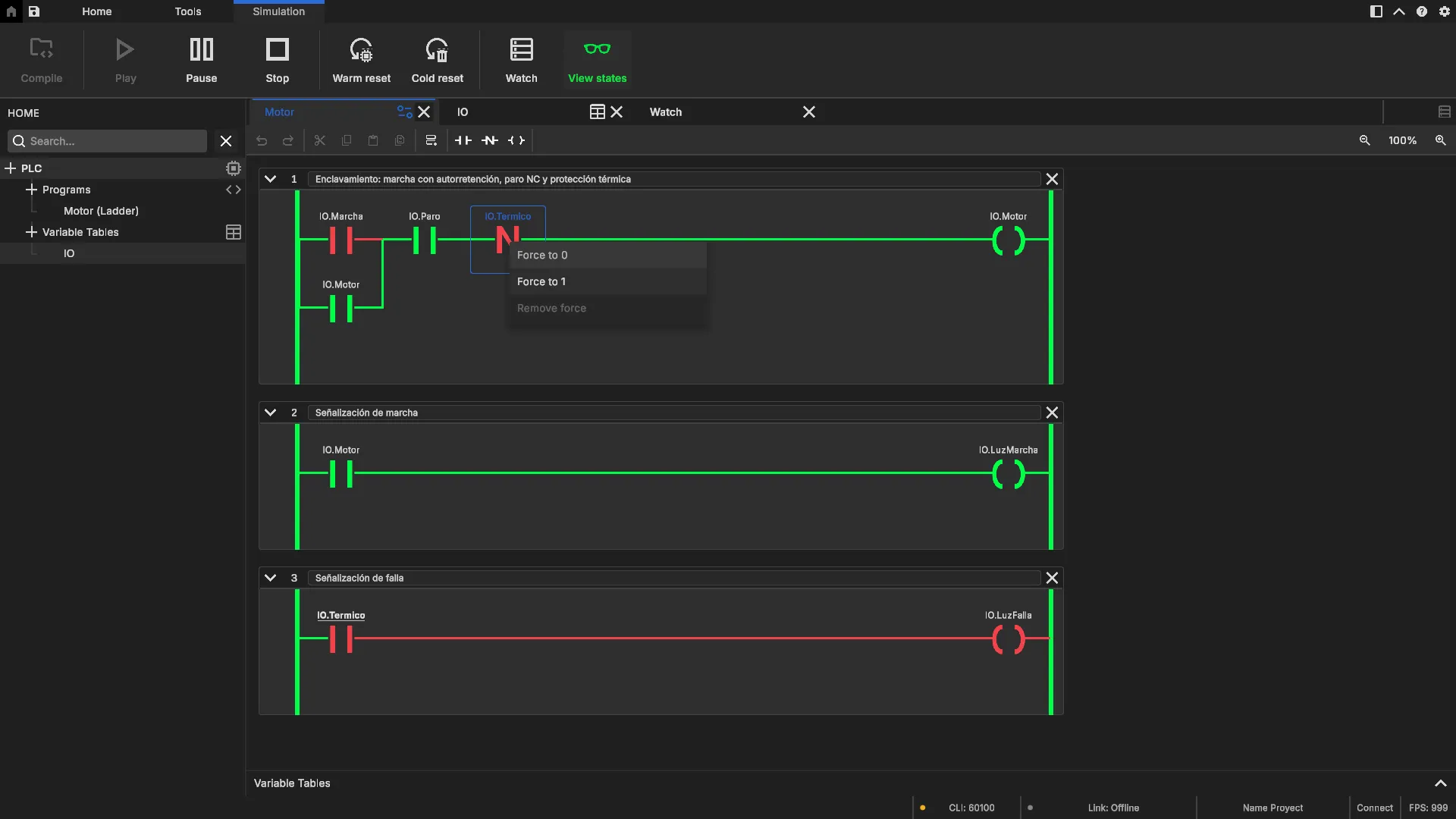
| Ladder | Contacts, coils and lines in green (TRUE / energised) or red (FALSE); numeric values next to block pins. |
| FBD | Coloured Boolean wires and the current value next to each pin. |
| Grafcet | Active steps and true transitions in green; step monitor with times and actions on click. |
| ST | Variable values at the end of each line. |
One-scan pulses (e.g. an R_TRIG output) are held visible for a moment so you can see them.
Watch table
Section titled “Watch table”Watch opens a tab with the project variables grouped by table, program and function block instances (expandable, to see e.g. C_Piezas.CV or T_Mezcla.ET).
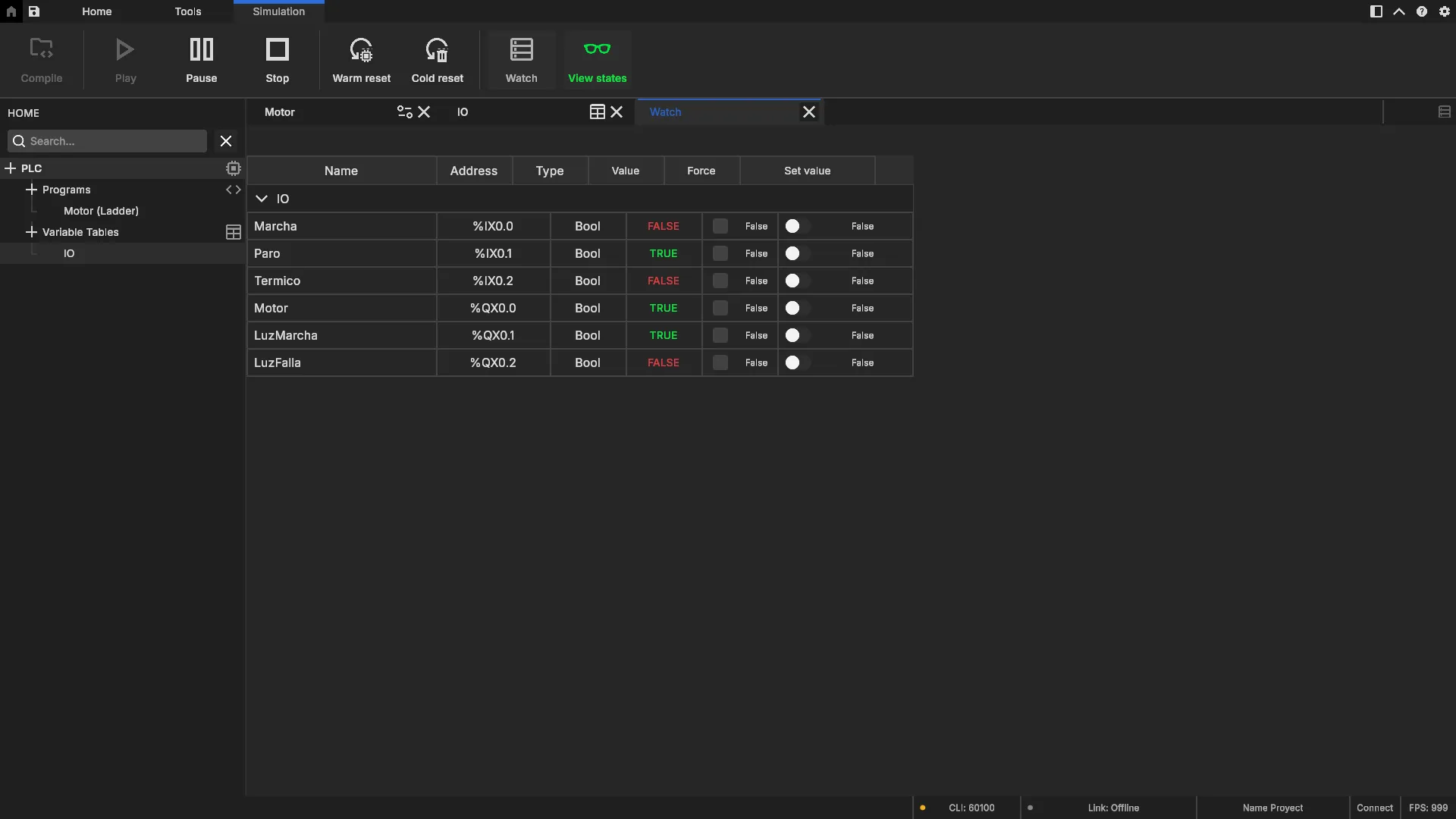
| Column | Description |
|---|---|
| Name / Address / Type | Variable identification. |
| Value | Current value (green TRUE, red FALSE, or the number). |
| Force | Check box to force the variable to the value on its right. |
| Set value | Writes a value once (the program may overwrite it in the next scan). |
Writing and forcing values
Section titled “Writing and forcing values”There are two ways to change a variable from outside the program:
| Write (Set value) | Force (Force) | |
|---|---|---|
| Duration | Momentary: the program may change it afterwards | Permanent until the force is removed |
| Typical use | Simulate a push button or an input | Simulate a stuck sensor, hold an output, test a fault |
| Indication | — | The variable is marked as forced |
For inputs (%I…) both are effectively equivalent, since the program does not write them. For variables computed by the program, only forcing holds.
Forcing from the editors
Section titled “Forcing from the editors”Right-click an element (contact, coil, transition, ST variable, Grafcet monitor row or table row) and choose:
- Force to 0 / Force to 1 for BOOL variables.
- Remove force to release it.
To write or force numeric values (INT, REAL, TIME…) use the Watch table.
PLC scan and tasks
Section titled “PLC scan and tasks”The simulator honours the configured tasks: continuous ones run every scan and periodic ones at their interval. A watchdog stops the simulation if a scan takes too long (for example an infinite loop in ST) and reports it in the console.
Connected (online) simulation
Section titled “Connected (online) simulation”With PLC Link the “simulation” can be another program’s PLC, such as IndustryLab. In that mode ProtoCode monitors the remote PLC with the same tools (View states, Watch, forcing) and Stop disconnects.