
PLC Link
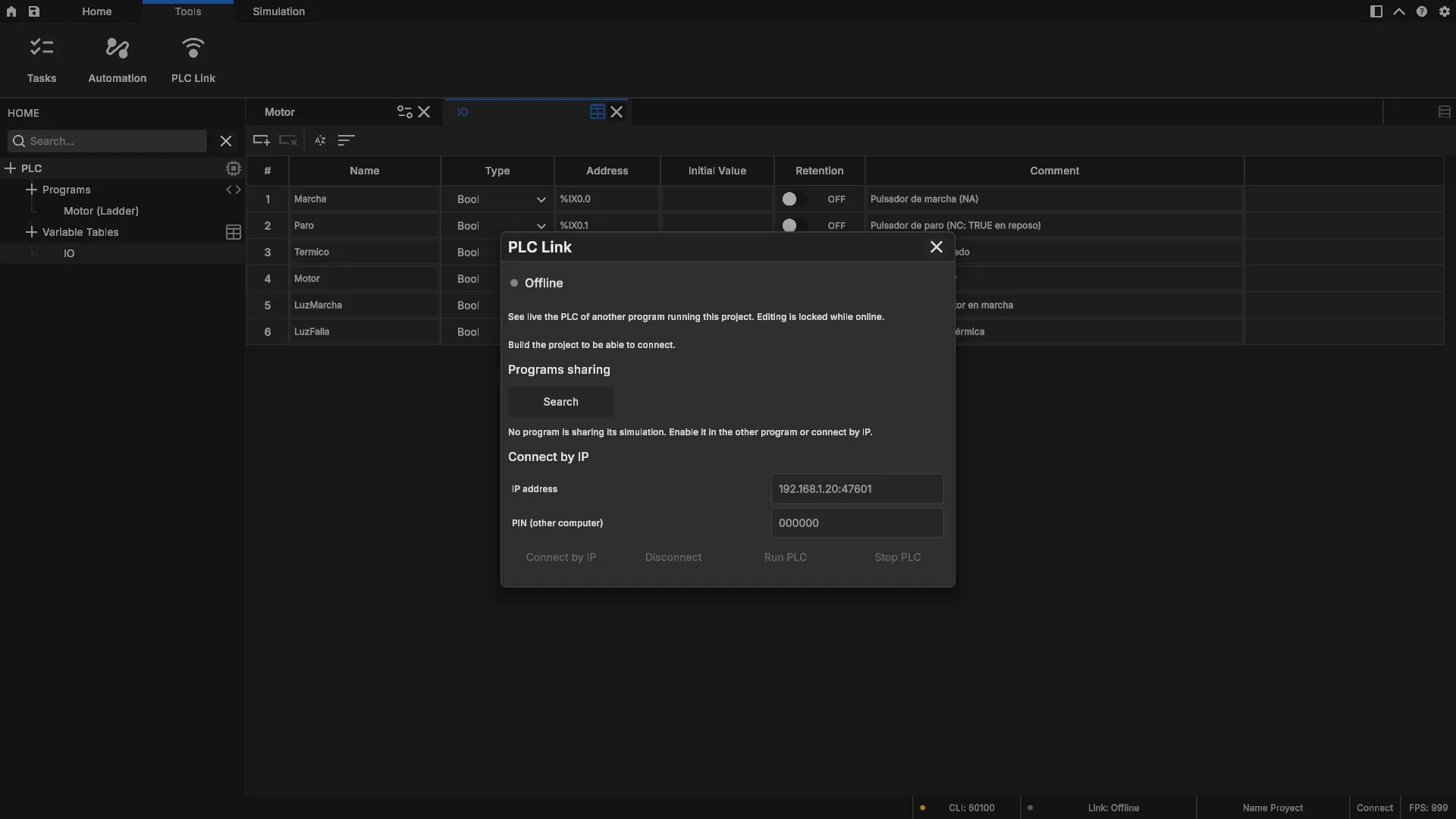
PLC Link connects ProtoCode to the PLC running in another RoboLacyTech program, for example an IndustryLab 3D or IndustryLab Fluid plant. The PLC keeps running in the other program (where the machine is), and ProtoCode shows its live state in the editors and the Watch table and lets you force variables, just like a local simulation.
Open it with Tools → PLC Link.
Requirements
Section titled “Requirements”- The same program on both sides. ProtoCode only connects if the open project, once compiled, is exactly the same as the one the other program runs. A fingerprint of the compiled program is compared: change a single rung and the connection is refused until both match. This way you never see states that do not belong to the diagram.
- Build the project before connecting (Build the project to be able to connect).
- In the other program, share the simulation from its own PLC Link window.
Connecting on the same computer
Section titled “Connecting on the same computer”- In the other program (e.g. IndustryLab), open its PLC Link window and turn on sharing.
- In ProtoCode, open the same project and compile it.
- Open Tools → PLC Link and press Search under Programs sharing. Programs that are sharing appear in the list.
- Pick the compatible PLC and connect.
Connecting to another computer on the network
Section titled “Connecting to another computer on the network”- Under Connect by IP enter the other computer’s IP address and port (e.g.
192.168.1.20:47601). - Enter the PIN shown by the other computer. The PIN is only required for remote connections.
- Press Connect by IP.
Once connected
Section titled “Once connected”- The Link indicator in the status bar shows the connection state.
- View states, Watch and forcing work on the remote PLC.
- Run PLC / Stop PLC start or stop the other program’s PLC (if it allows it).
- The ribbon’s Play, Pause and Reset act on the remote PLC.
- Stop on the ribbon (or Disconnect) closes the connection and returns to local simulation.
- Editing is locked while connected.