
Build and console
Before simulating, ProtoCode compiles the whole project: it translates every program, function, block, table and task (whatever their language) into a single program for the virtual PLC.
Compile
Section titled “Compile”- Press Simulation → Compile.
- Or just press Play: if there are uncompiled changes, the project is compiled before it starts.
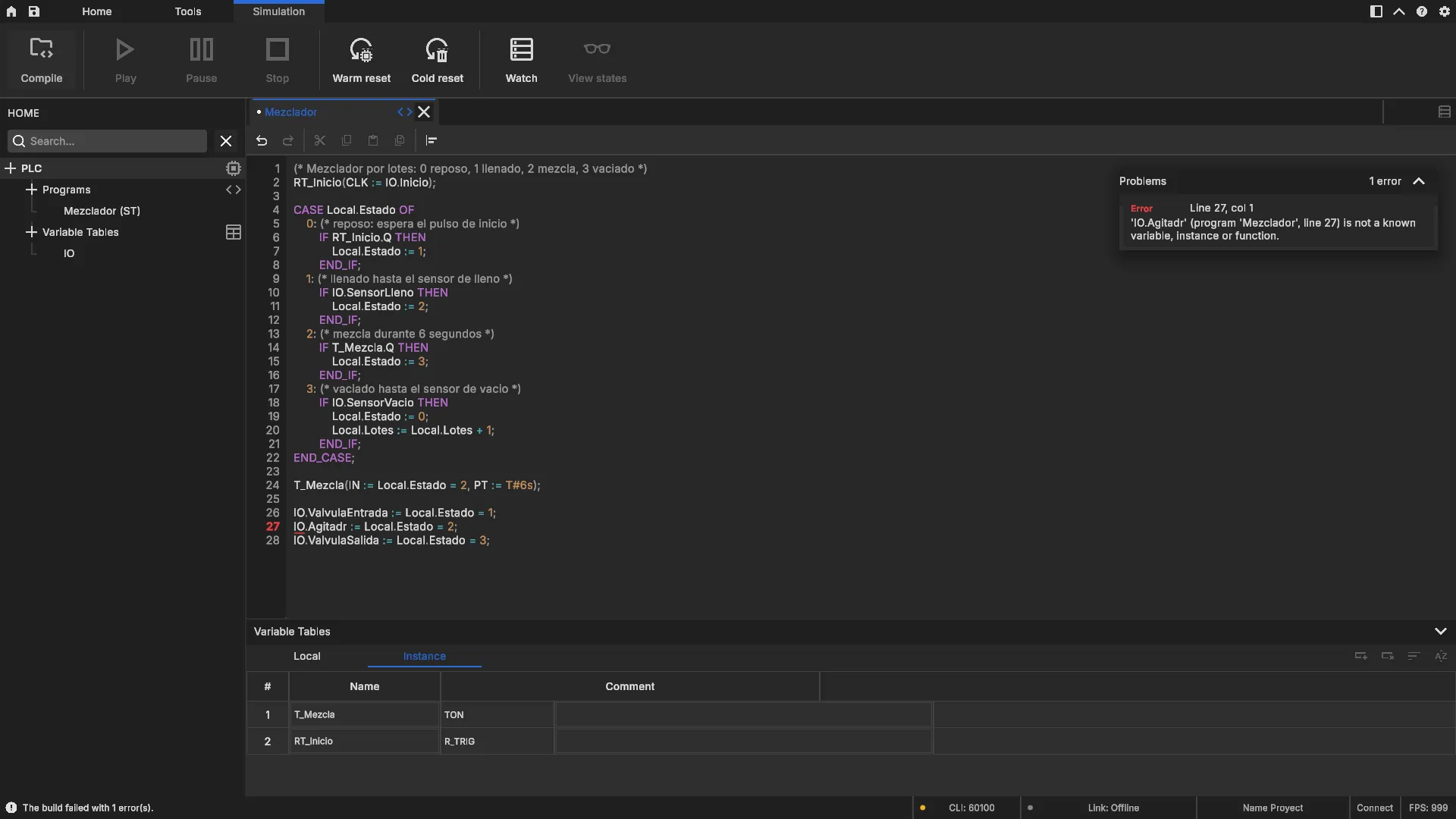
When it finishes, the status bar shows the result, e.g. Build succeeded. 12 symbols generated. or The build failed with 1 error(s).
The Compile button is disabled when the project is already compiled and unchanged.
Problems panel
Section titled “Problems panel”When a file has errors, the editor shows a floating Problems panel with the error count and the list of messages. In ST the faulty line is marked in red in the margin.
Console
Section titled “Console”Click the status bar message to open the console.
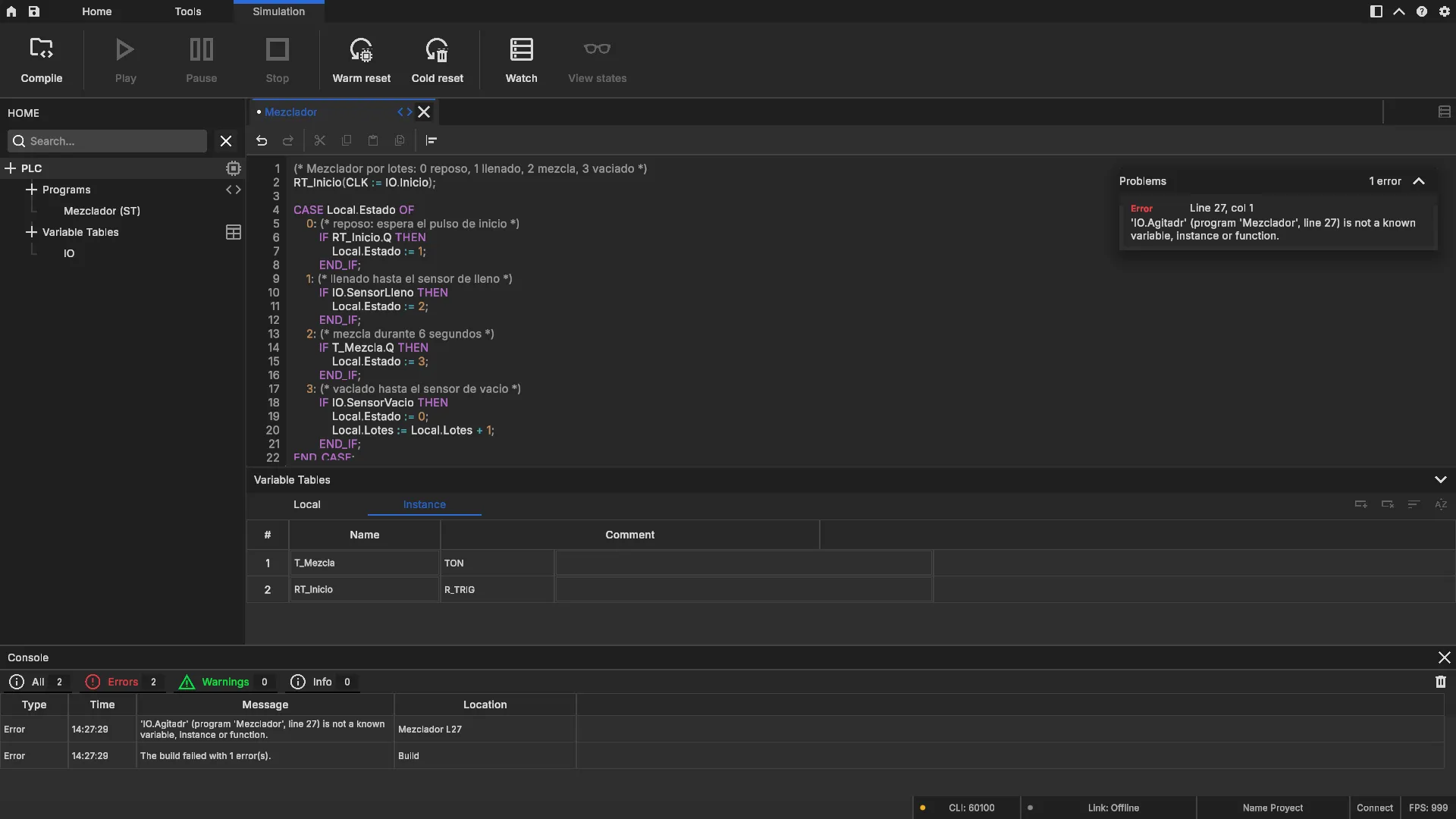
- Severity filters: All, Errors, Warnings and Info, each with its count.
- Columns: Type, Time, Message and Location (file and line or element).
- Click a row to jump straight to the file and element that produced the message.
- The bin icon clears the console and × closes it.
Common errors
Section titled “Common errors”| Message | Cause | Fix |
|---|---|---|
| ‘X’ is not a known variable, instance or function | The name does not exist or is misspelled. | Fix the name or declare the variable in a table (in ST, Ctrl+.). |
| Type mismatch | E.g. a REAL assigned to a BOOL, or an INT used on a contact. |
Use a variable of the right type or a conversion (INT_TO_REAL…). |
| Empty operand | A contact, coil or block pin without a variable. | Select it and assign a variable or literal in Properties. |
| Invalid or overlapping address | Two variables share memory bits, or the address does not match the type. | Check the Address column of the tables. |
| Program without a task (warning) | The program compiles but will not run. | Assign it to a task in Tools → Tasks. |