Grafcet / SFC editor
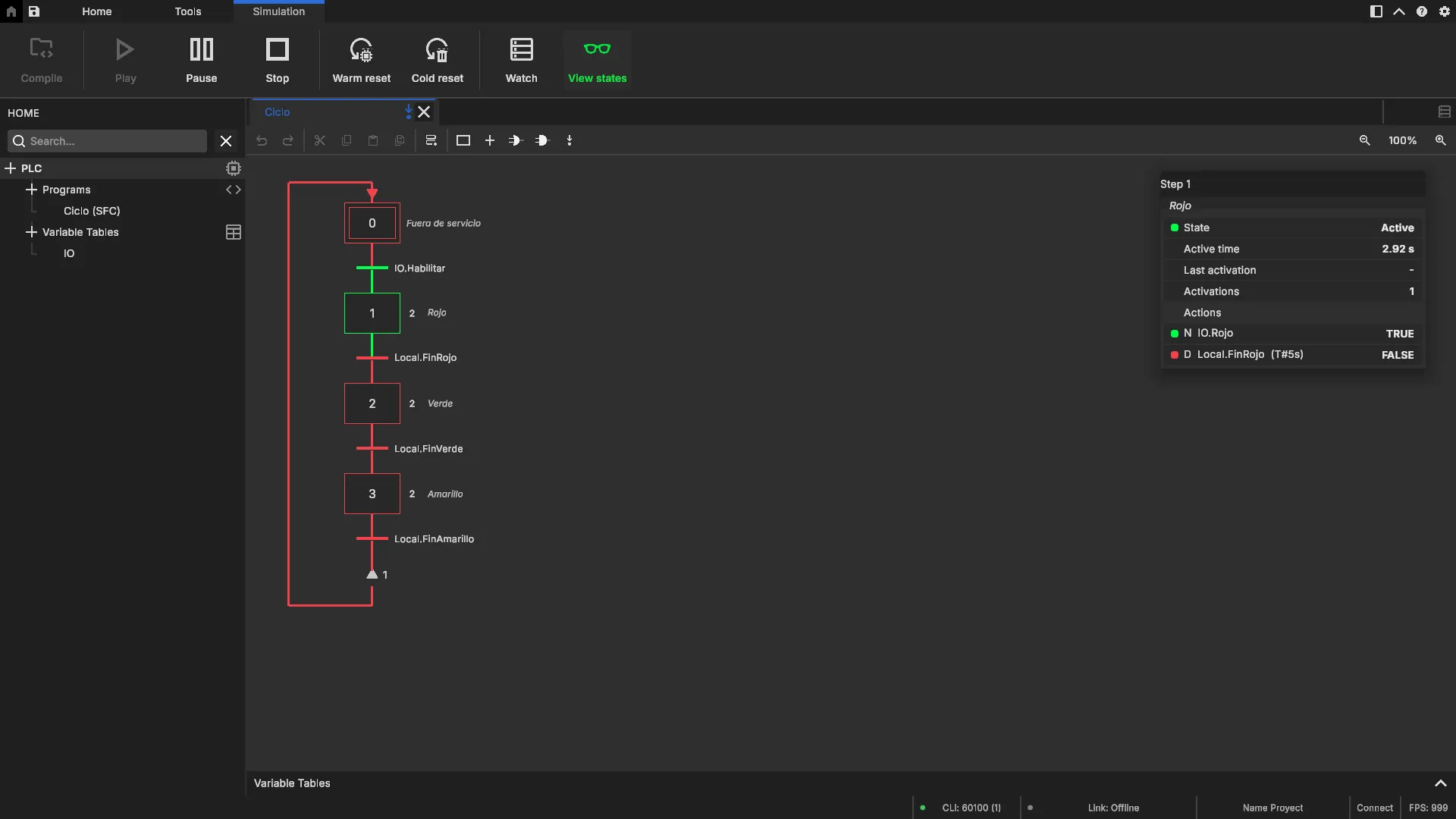
Grafcet (in IEC terms, Sequential Function Chart or SFC) describes a process as a sequence of steps. At any time one or more steps are active; each runs its actions, and the process moves on when the transition (receptivity) between steps becomes true. It is ideal for sequential machines: work cycles, traffic lights, batch processes.
Elements
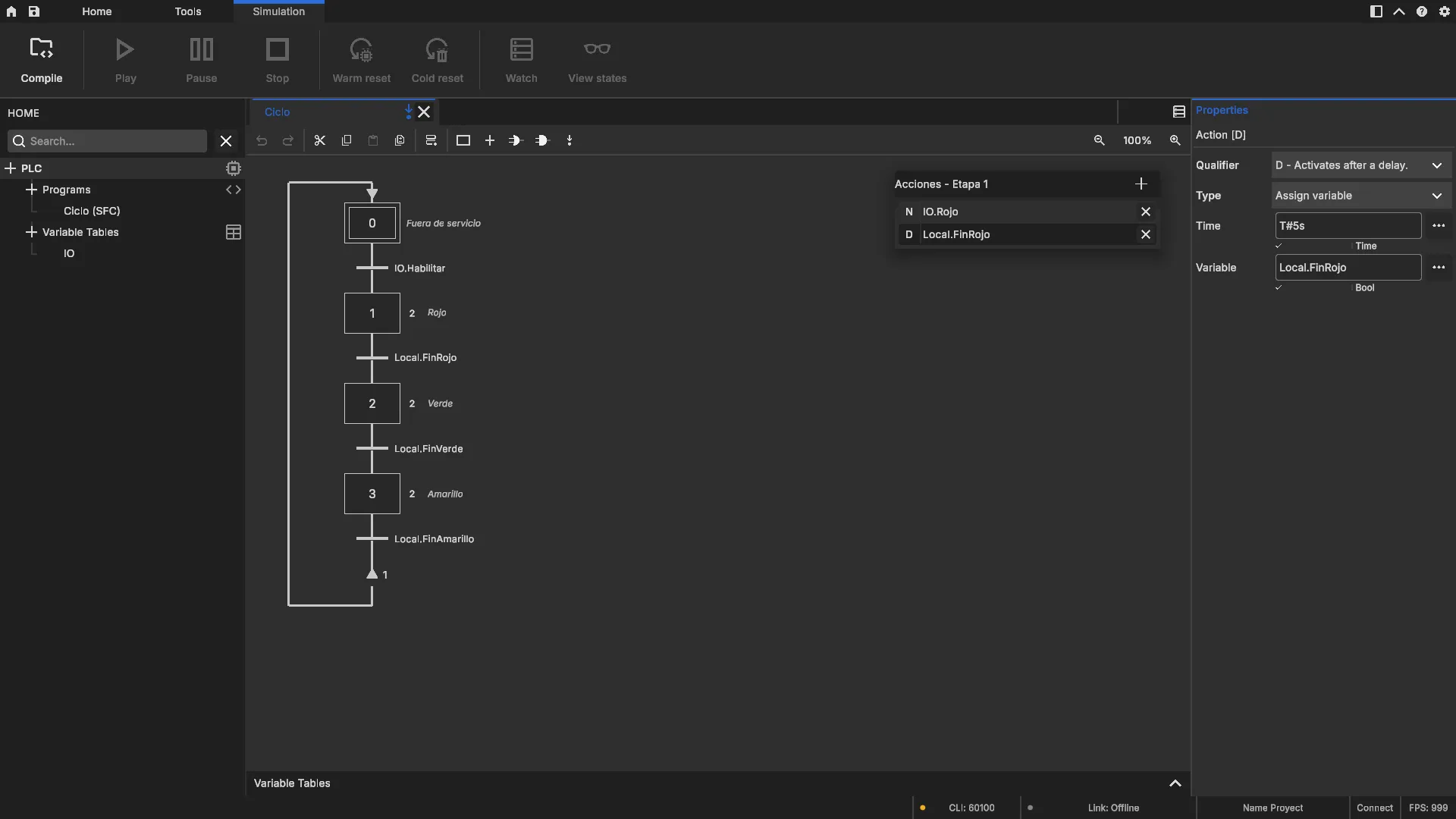
Section titled “Elements”| Element | Shape | Description |
|---|---|---|
| Initial step | Double box | Active when the PLC starts. |
| Step | Numbered box | A process state. Its action count and comment are shown to the right. |
| Transition | Horizontal bar | Condition to move from the previous step to the next one. |
| OR divergence | Single line | Selection: one of the branches is followed (the first whose transition is true). |
| AND divergence | Double line | Parallelism: all branches start together and synchronise at the end. |
| Jump | Arrow with a number | Goes back (or forward) to the given step. |
Toolbar and shortcuts
Section titled “Toolbar and shortcuts”| Action | Shortcut |
|---|---|
| Insert a step (with its transition) after the selection | Shift+F2 |
| Add an action to the selected step | Shift+F3 |
| Create an OR divergence | Shift+F7 |
| Create an AND divergence | Shift+F8 |
| Insert a jump | Shift+F9 |
| Move the element up / down | Alt+↑ / Alt+↓ |
| Select previous / next | ↑ / ↓ |
| Switch branch | ← / → |
| Clear the selection | Esc |
The usual undo, redo, cut, copy, paste and duplicate buttons are also available.
Select a step to edit its comment in Properties (shown in italics next to the step). The floating actions window of the step (titled Acciones – Etapa N) also appears with the list of actions; press + to add one and × to remove it. The list order is the execution order.
Actions
Section titled “Actions”Select an action in the list to configure it in the inspector:
| Field | Description |
|---|---|
| Qualifier | When and how it acts (see the next table). |
| Type | Assign variable (writes a BOOL variable), Function (calls a function with its operands) or Function block (runs an FB instance). |
| Time | Duration for time-based qualifiers (D, L), e.g. T#5s. |
| Variable / operands | Action target or block parameters. |
Qualifiers
Section titled “Qualifiers”| Qualifier | Name | Behaviour |
|---|---|---|
| N | Non-stored | Sets the variable while the step is active. |
| S | Set (stored) | Sets the variable and leaves it set after the step ends. |
| R | Reset | Clears an action stored with S. |
| P1 | Rising pulse | Runs once when the step becomes active. |
| P0 | Falling pulse | Runs once when the step becomes inactive. |
| P | Pulse | One-scan pulse when the step becomes active. |
| D | Delayed | Activates once the step has been active for the given time. |
| L | Limited | Active for at most the given time, even if the step stays active. |
Transitions
Section titled “Transitions”Select a transition to set its condition:
- Variable: a BOOL variable, e.g.
IO.HabilitarorLocal.FinRojo. - Function: a function returning BOOL with its operands, e.g.
GTwithIN0 = IO.NivelandIN1 = 80.
Divergences and jumps
Section titled “Divergences and jumps”- Select the transition (for an OR divergence) or the step (for an AND divergence) where it starts.
- Press
Shift+F7(OR) orShift+F8(AND). Two branches are created; add more with the new-branch button. - Insert steps inside each branch with
Shift+F2. - To close a loop, add a jump (
Shift+F9) at the end of the branch and choose the target step in the inspector.
During simulation
Section titled “During simulation”With View states on:
- Active steps and true transitions are drawn in green; inactive ones in red.
- Clicking a step opens its monitor: state, active time, last activation, activation count and the value of each action. You can also force variables from the monitor rows with a right-click.